
rsPassGenFromCVS
Warning
This feature is exclusive to the commercial version.
This utility allow you to generate passes and pmodifiers directly from a CSV file or the clipboard.
Options
Source
You can load a .CSV (Comma-Separated Values) file or copy/paste from any text editor.
You would generate a .csv file from a spreadsheet program such as Excel or Calc. Almost all spreadsheet program supports .csv output. This is an example of table and the generated result.
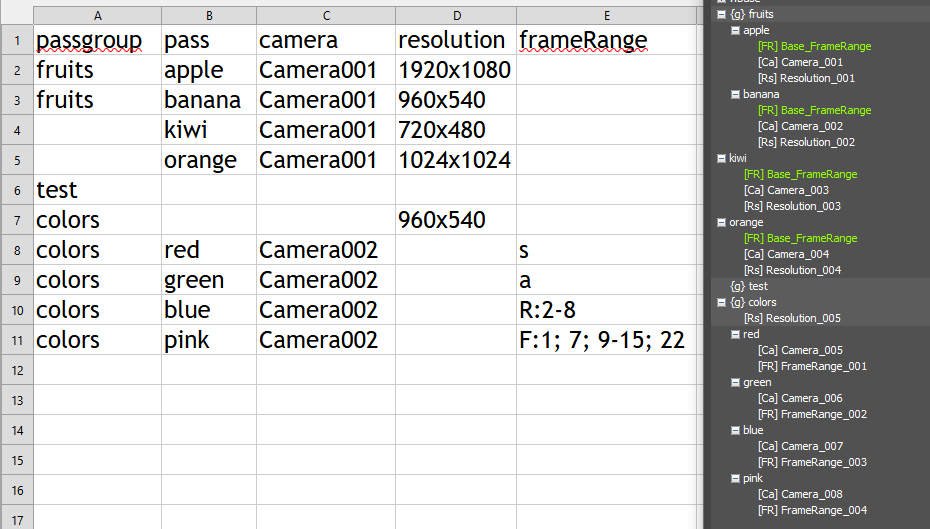
The first row of the file defines the columns. The first column must contain either “pass” or “passgroup”.
-
- To add a pass under a pass group, you must specify the pass group name for each pass.
- If the pass group field is empty, the pass will be created at the root level (for example, the “kiwi” pass shown in the image).
- If you only provide a pass group name (without a pass name), then pmodifiers will be created directly under that pass group (as in the “resolution” pmodifier inside the “colors” pass group).
- If a pass or pass group already exists, it will be reused.
Currently, three pmodifiers are supported: Camera, Resolution, and FrameRange.
Adding a column with the pmodifier name will generate that pmodifier. Some properties can be set directly in the cells of that column:
-
- Camera – Specify the camera name. If the camera is not found, the active viewport will be used instead.
- Resolution – Use the format <width>x<height>.
- FrameRange – Use the format <Type>:<Value> where:
- <Type> = S (Single), A (Active Time Segment), R (Range), or F (Frame). This matches the options in the pmodifier UI or 3ds Max.
- <Value> = depends on the type:
- For R (Range), use <start>-<end> (e.g., 10-120).
- For F (Frame), use the standard 3ds Max frame format.
- Important: use a semicolon ; instead of a comma , because the file is comma-separated.
You can open the .csv file in a text editor, copy its contents, and then use the “Paste From Clipboard” button.
If you only need to create passes and pass groups, you don’t need a .csv file. You can simply prepare a list of passes, copy it to the clipboard, and paste it. Use the full path format <pass group>/<pass> to create passes under groups. To create an empty pass group, end the name with a /.
For example:
-
- “test/colors” → creates a “colors” pass inside “test”
- “test/” → creates a “test” pass group with no passes
Select Existing
-
- Pass / Passgroup button – Uses the existing passes and pass groups. To delete them, select the desired pass or pass group with this button and press Delete before generating new passes.
- Print Pass Preview button – Displays the list of passes that will be created in the Listener.
Generate
generates pass/passgroup and pmodifiers.
Instance pmodifiers with identical data
When this option is checked, passes that share the same camera, resolution, or frame range value will reuse a single instanced pmodifier instead of creating a separate copy for each pass. This reduces pmodifier count and keeps changes in sync across all passes that share the same value.