
rsPrvRender
Warning
renderStacks already includes rsPrvRender. Do not install rsPrvRender separately if you have renderStacks installed.
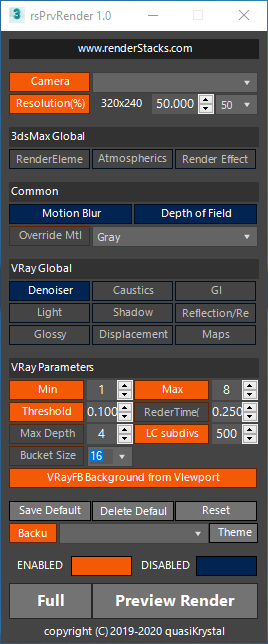
rsPrvRender temporarily changes selected render settings so you can preview a render without disturbing your production settings.
Choose the features you want changed for the preview and press Preview Render. The tool overrides what you picked, renders a preview image, then puts every setting back the way it was.
Every setting you make is saved in your scene file. Run the tool again on the same scene and you get exactly the settings you left.
Supported renderers
These renderers are supported directly:
- V-Ray
- V-Ray GPU
- Arnold
- ART
- Scanline
- Corona
- FStorm
- Redshift
You can use rsPrvRender with other renderers too, but only the features that are not renderer-specific will be available for those.
What the button colours mean
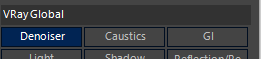
There are many features you can override to get a fast preview. Only the ones you explicitly set to override are used — a button the same colour as the background does nothing, like Caustics and GI here.
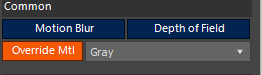
The goal is a fast preview, so every override is aimed at reducing render quality or getting the image sooner. Some overrides turn features off and some turn them on, so the colour says which: a button that turns a feature on uses the ENABLED colour, and a button that turns one off uses the DISABLED colour.
To make the preview faster you need Motion Blur and Depth of Field disabled. So even though you switch the button on in the UI, what the tool does is turn them off for the render — which is why they take the DISABLED colour. If the renderer already had them off, the tool does nothing to them; the goal is only ever to be sure a preview is not rendered with motion blur or depth of field.
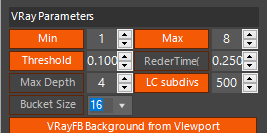
The other way round, overriding the material or enabling threshold control makes the render faster, so those buttons take the ENABLED colour when you switch them on.
As a rule, the Common and Global settings are buttons that disable features, and the Parameters are buttons that enable them.
Camera and Resolution
Camera – Pick the camera to preview from the dropdown. Choose none and the active viewport camera is used.
Resolution(%) – A percentage of the render resolution. Type one or pick from the presets; the resulting preview resolution is shown beside it.
3dsMax Global
Overrides the features 3ds Max itself controls from Render Setup.
RenderElements – Turns off Render Setup > Render Elements > Elements Active
Atmospherics – Turns off Render Setup > Common > Options > Atmospherics
Environ Map – Turns on Environment and Effects > Common Parameters > Background > Use Map
Light cat. – Turns on the Lights category
MultiPass – Turns off Multipass Effects
Render Effects – Turns off Render Setup > Common > Options > Effects
Common
The settings most renderers have.
Motion Blur – Turns motion blur off, in the cameras as well
Depth of Field – Turns depth of field off, in the cameras as well
Override Mtl – Temporarily overrides every material in the scene, which is good for tracking down a problem. Use one of the predefined materials, the material in the active slot, or the override material already assigned.
Renderer Global
The renderer's own global switches — displacement, GI, maps and so on.
If the renderer has a denoiser you can turn it off here. Denoising often takes longer than the preview render itself.
Renderer Parameters
Sampling, iterations, subdivs and threshold settings. For V-Ray, Threshold means the Image Sampler threshold.
V-Ray Background from Viewport – With a viewport background image assigned, this puts that background into the V-Ray frame buffer. If the background is animated, the image for the current frame is used.
Rendering
Preview Render – Renders the preview with every override you set.
Full – Overrides the camera if that option is on, and nothing else. Use it when you need to check a final render. It still will not save a file, and it renders only the current frame.
Defaults and theme
Save Default – Defines your own defaults per renderer. Set the options and values and press the button, and rsPrvRenderDefaults_[renderer name].xml is written to your plugcfg folder. The next time you run the script in a new scene those defaults are used and stored in the scene. Right-click the button to open the folder holding the file.
Delete Default – Deletes the defaults file for the current renderer.
Reset – Puts every option and value back to the default. If there is a defaults file it is used; if not, the factory default is. For a true factory reset, press Delete Default first.
Theme – Six of them, and the ENABLED and DISABLED swatches show which colours are in use. The swatches are buttons as well: click one to set your own colour, so there are more than six.