
Preference menu
allow to access UI related functions, Preference dialog and startup file.

Preference

The top section of Preference is per file perference. These settings are stored in the max file.
Data Storage Type
Check GUID vs Name section.
Pass Level Pmodifier Display
You can select some of pmodifiers types to display the selected pmodifier’s rollout in pass level. Not all pmodifier can be shown in pass level. When you click the Select.. button. You will see the supported pmodifier list. Also, the order you select would be the order to display.
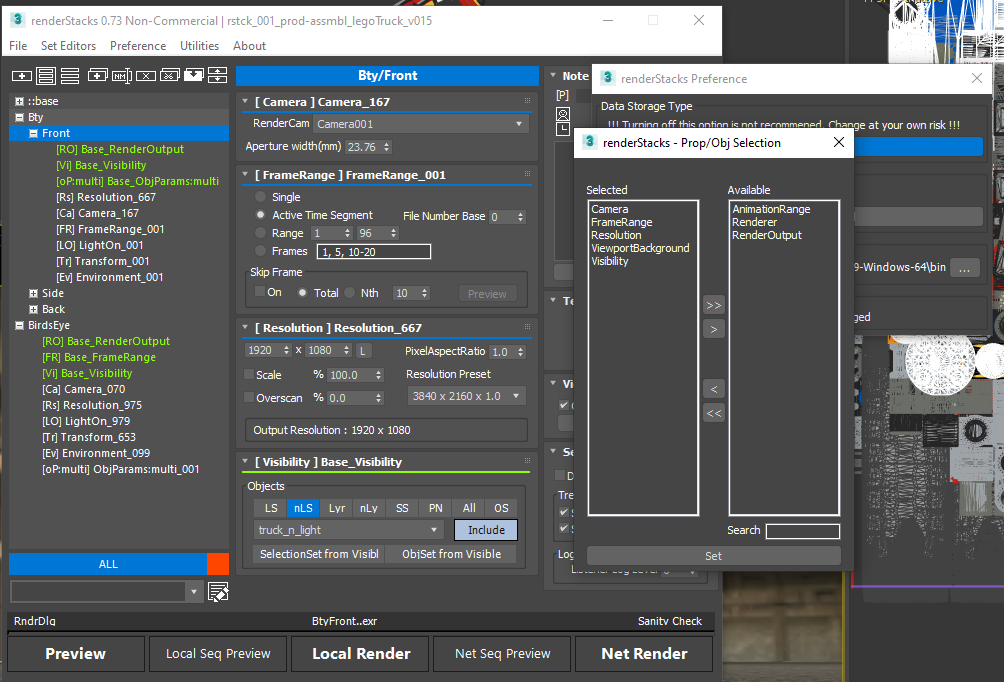
You can see in the above image I have selected 5 pmodifiers type to display in pass level. I haven’t used ViewportBackground pmodifier yet. So, it didn’t appear. But, other 4 pmodifiers are displayed together when you selected a pass.
Pass Level Pmodifier Display
When this option is on, the selected type of pmodifiers rollouts will be shown in pass level. Not all pmodifier can be shown in pass level. When you click the Select.. button. You will see the supported pmodifier list. Also, the order you select would be the order to display.
Image Sequence Player
You can choose the image sequence player to play image sequence command such as Pass right click menu > Play Pass Sequence.
As of now, It supports RamPlayer, ChaosPlayer, DJV and MrViewer.
If you choose a player from dropdown, renderStacks will try to find the player from the default installation. If it finds it, it will show the path. If not, use the browser button, […], and pick the exe.
Multi Preview
New in 1.1. You can set the format to save multi preview with Format dropdown. It was hard-corded to exr before.
Open After- You can choose what would happen after multi preview. There are 4 options.
- Do not load – Preview images would not be loaded.
- RamPlayer – Preview images would be loaded into RamPlayer.
- Built_In Image Viewer – Preview images would be loaded into 3dsMax image viewer. Each image will open a viewer.
- Image Seq Player – Preview images would be loaded into the image seq player selected the above.
Options
Instant scene update when pmodifier value changed
When this option is on, changing parameters for some type pmodifier will immediately change the scene.
But, the following pmodifiers which controls parameters in Render Setup dialog > Common Tab would not update Render Setup dialog. It is because the UI doesn’t update automatically when the value is changed by maxscript. I have to trigger to update the UI, and the UI update is slow. That’s also why renderStacks close Render Setup dialog when it activate pass.
- FrameRange
- RenderCommon
- Resolution
Multi Visibility modifier
 You can choose if a pass can have multiple active Visibility modifier or single active pmodifier. If thiss option is on, the sum of all objects in all Visibility modifier for the pass will be used to unhide objects. It is like having ObjSet at pass level.
This option is off by default. But, you can choose the default status by pressing “Save as Default”. Then, the current on/off status will be set as default and used for new scene file.

Global Settings
These settings are stored in rsSettings.ini file and used across max sessions.
Options
Always on top dialog – Until 3.23, all renderStacks dialogs have been set to “Always on to/Top most”. While turning on this option prevent the modal dialog to go behind other dialog, sometimes this behavior wouldn’t be desired. If so, turn off this option.
Passes to show in the Render Check – set the default for the same name setting in the Render Check dialog.
BackBurner
Automatic Search – Allow to set submit mask IP explicitly
Path Assignment
Point renderStacks at the external executables it drives.
- RenderFlow – the RenderFlow CLI (
rfcli.exe), used by the RenderFlow pmodifier. - FFmpeg –
ffmpeg.exe, used by the MakePreview pmodifier to encode MP4 previews. renderStacks auto-detects it on first use (common install locations), so usually there is nothing to set; browse with the […] button if it is not found.
 Network Submission Temp .max File Path – [RR][DL]
Defines custom submission path for Royal Render and Deadline. If this path is empty, the default submission location will be used.
[DL] Deadline
If you set this path,Deadline submission option will be set as “SAVE and Submit Current Scene File to USER-DEFINED NETWORK PATH”. the rendering max file will be saved in the defined folder + Deadline naming convention(username + date) instead of repository. So, you can reduce the load of repository server. Deadline only accept path. But, you must put filename here even tho only path is used. Make sure to end the path with something.max.

Deadline Single File Submission
When this is on, renderStacks uses its own scene file submission instead of Deadline’s. Only one max file is saved per submission, and each pass is activated on the render node after that file is loaded. Submission is faster and uses far less storage.
The file is saved under the path set above, in a folder named [year_date_time]_[username] – for example \\2023_1213_010934_username.
Every render node must have quasiKrystalLib.mse as a startup script. Only that one file is needed, not the whole renderStacks installation. Also, do not use the active viewport for the Camera pmodifier unless every pass shares the same viewport.
Full details, including troubleshooting, are on the [DL] Deadline page.
Render Log File
Sets the file name used when Save local render log to file is enabled in the Render Check dialog. The name is built from tokens, and the default is:
<RenderFolder>/<SceneName>_<PassFullName>_<YY><MM><DD>_<Time>.log
Right click the field to insert a token. Hover over it to see the path resolved against the current pass. See Render Log.
Mini
Turn on renderStacks Mini mode.
Dockable
Make renderStacks dockable.
Show Note panel
allow you to toggle top right panel, which contains Note rollout, User Tokens, Viewport Cam Update, Settings rollout.

Save startup file/Open startup folder
Check Startup file section.